
How to Set Up and Track Conversion Goals in statpx
Pageviews and sessions tell you how much traffic your site is getting. Goals tell you whether that traffic is doing anything useful. A goal is a specific outcome you have decided matters — a signup, a purchase confirmation, a file download, a contact form submission. Once you define a goal in statpx, you get a running count of how often it happens and what percentage of your sessions end in that outcome.
This guide explains both types of goals available in statpx (URL goals and event goals), how to configure the match mode correctly, how to add a monetary value, and how to read the resulting data.
What Are Goals in statpx?
A goal in statpx is a rule that says "when a visitor does X, record a conversion." X can be one of two things:
- URL goal — the visitor navigates to a specific page, such as a thank-you page after signup or an order confirmation URL. No code changes needed — the pageview itself triggers the conversion.
- Event goal — the visitor triggers a named JavaScript event that you fire using the statpx tracking API. This works for interactions that do not produce a new page load: a button click, a form submission handled by JavaScript, a download link, or a video play.
Goals are tracked per site. If you have multiple sites in your account, each one has its own independent goal list.
Creating a URL Goal
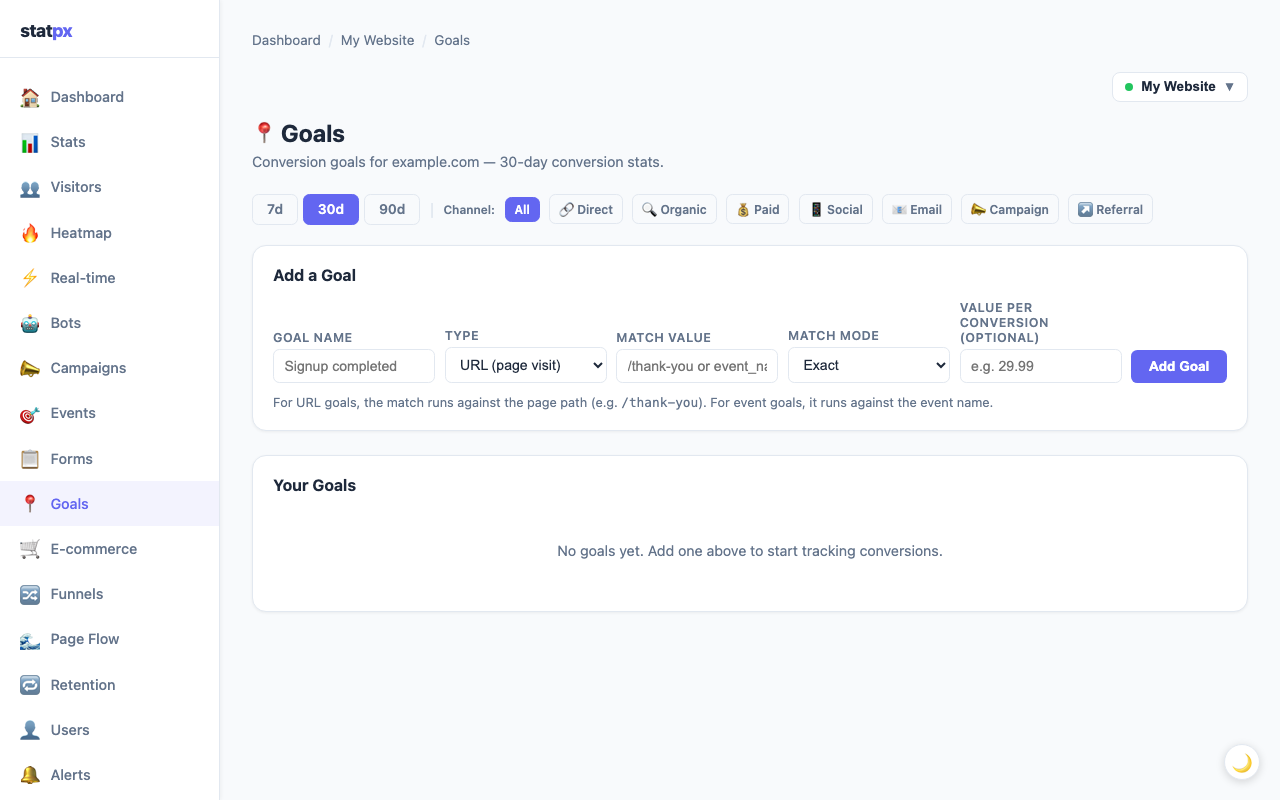
Go to your site's Goals page (accessible from the site navigation). Click New Goal and set the Type to URL. You will see three fields:
- Goal Name — a descriptive label for your own reference. For example: "Signup Complete", "Order Confirmed", or "Contact Form Sent". This name appears in all your goal reports.
- Match Value — the URL path that signals a conversion. This is the path portion only — enter
/thank-you, nothttps://example.com/thank-you. statpx automatically matches only within your registered domain. - Match Mode — controls how statpx compares the visitor's URL against your Match Value. See the next section for a full breakdown.
Click Save goal. The goal is active immediately. Any past pageviews that already matched the URL will not be counted retroactively — goal tracking starts from the moment you create it.
Choosing the Right Match Mode
The match mode determines how strictly statpx compares a visitor's URL to your goal's Match Value. Getting this right matters — too strict and you miss conversions; too loose and you count false positives.
| Mode | How it works | Best for |
|---|---|---|
| Exact | The full URL path must match your value exactly. /thank-you matches only /thank-you — not /thank-you?ref=email or /thank-you/. |
Single confirmation pages with no query string variation. |
| Contains | The URL path must contain your value anywhere within it. /thank matches /thank-you, /thanks, and /checkout/thank-you/order. |
When the URL might have variable prefixes or suffixes, or when you have a few similar confirmation pages. |
| Starts with | The URL path must begin with your value. /checkout/ matches /checkout/step-1, /checkout/payment, and /checkout/confirm. |
Tracking any visit to a section of your site, like all checkout pages or all success pages under a certain path. |
| Regex | Your value is treated as a regular expression. /order/[0-9]+/confirm matches any order confirmation URL with a numeric order ID. |
Complex patterns where the URL contains dynamic segments like user IDs or order numbers. |
For most signups and purchases, Exact is the right choice. It guarantees you are counting only the specific confirmation page, not accidentally counting related pages that happen to share a URL segment. Switch to Contains or Starts with when your confirmation page URL varies — for example, if users are redirected to /welcome?plan=pro or /welcome?plan=starter after different signup flows.
Creating an Event Goal
Event goals require a small addition to your page's JavaScript — a _st('event', ...) call that fires when the action you care about occurs. If you have not used custom events yet, start with our guide on custom event tracking in statpx.
To create the goal, go to Goals → New Goal and set Type to Event. Enter the same event name in the Match Value field that you are using in your JavaScript call. For example, if your code fires:
...then your goal's Match Value should be signup_complete. statpx matches the event name case-sensitively, so Signup_Complete and signup_complete are treated as different events. Stick to lowercase with underscores to avoid confusion.
When this event fires in a visitor's session, statpx records both the event in your Events tab and a conversion against the matching goal simultaneously. You do not need to do anything else — the same event payload serves both purposes.
pdf_download), checkout started (checkout_begin), newsletter signup (newsletter_submit), pricing page CTA click (pricing_cta_click), video play (demo_video_play).Setting a Conversion Value
When you create or edit a goal, you can optionally enter a Value per conversion. This is a number that represents what each conversion is worth to you in monetary terms. For a SaaS product with a $49 monthly plan, you might enter 49. For a lead generation form where each lead is roughly worth $15 in expected revenue, you might enter 15.
Once you set a value, statpx calculates and displays a Revenue (30d) column on the goals page — the total value of conversions recorded in the past 30 days (conversions × value per conversion). This is not actual revenue pulled from a payment processor; it is a calculated estimate based on the number you entered. It is useful as a proxy metric to compare goals and campaigns by their estimated business impact rather than just raw conversion counts.
Reading Goal Data
The Goals page shows a table with one row per goal. The columns you see are:
- Goal Name — the label you gave the goal when you created it.
- Type — URL or Event, shown as a badge.
- Conversions — the total number of times this goal was triggered in the selected period.
- Conversion Rate — conversions divided by total sessions for the same period, expressed as a percentage. A 3% conversion rate means 3 out of every 100 sessions ended in this goal being triggered.
- Revenue — only shown if you set a value per conversion. Total estimated value for the period.
The date range tabs at the top of the goals page control all columns simultaneously. Use Today to check whether a campaign launched today is converting, 7d for your weekly review, and 30d as your standard reporting period. Switching to 90d lets you spot long-term trends — a rising conversion rate over 90 days usually signals that content or UX improvements are working.
For deeper analysis of how goals connect to your traffic sources, cross-reference the conversion data with your traffic source breakdown on the main analytics dashboard. If organic traffic has a 5% conversion rate but social traffic has 0.5%, that tells you exactly where to focus — either by improving the social landing page experience or by investing more in the organic channel that converts.
Start tracking your website for free
statpx gives you privacy-friendly analytics with no cookie banners, no data limits, and no credit card required. Set up takes under 5 minutes.
Get started free →The Bottom Line
Setting up your first goal takes less than a minute. A URL goal requires no code changes at all — just the URL of your confirmation page and the match mode that fits your URL structure. An event goal requires one line of JavaScript on the action you want to track, plus the matching goal definition in statpx. Once goals are running, the conversion rate column becomes the most important number on your dashboard — it tells you not just how many visitors you are getting, but how many are doing what your site exists to make them do. That is the difference between traffic and results.